Writing
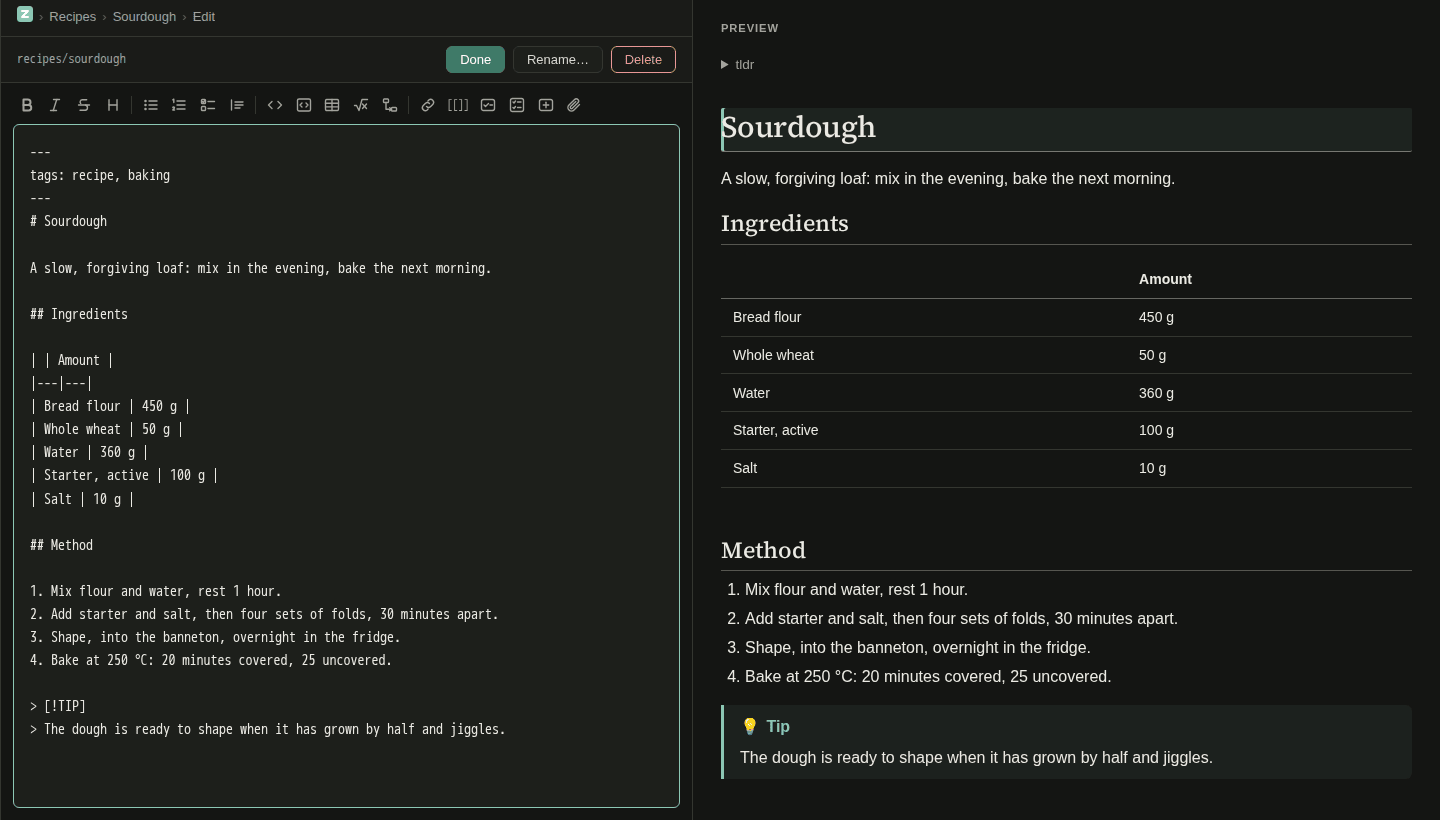
Zone’s editor is a plain Markdown editor with a live preview: you write text, Zone saves it as you go and shows how it will look. This page covers the editor and its helpers, what happens when two people edit the same page, and then the Markdown Zone understands, including what it adds to the usual syntax.
Opening the editor
- On a page, click Edit or press
e. - To change just one part of a long page, click the ✎ beside a section’s heading (see Editing one section).
- Click a red link to start a new page.
The editor shows your text on the left and a live Preview on the right, updated as you type. F2 hides or shows the preview.
Saving
You don’t need to save by hand.
- Auto-save: two seconds after you stop typing, Zone writes your text to the page’s file. A dot ● in the toolbar shows while there are changes not yet written.
- Done (or Ctrl+S) saves, records the page as a new version in its history and takes you back to the page.
- Leaving the editor any other way, by a link or the browser’s Back button, saves what you typed too.
Auto-save keeps your text safe, but only Done makes a version in the page’s history. Text that’s auto-saved but not yet Done counts as an uncommitted change.
There’s no Cancel button. To take back what you typed, undo with Ctrl+Z, or restore an earlier version from the page’s history.
The toolbar also has Rename… and Delete, which work as in the page’s ⋯ menu (see Pages).
The formatting bar
The row of buttons above the text helps you write Markdown; it doesn’t hide it. Each button works on the selected text or the line the cursor is on, and one Ctrl+Z undoes it.
| Button | What it does | Key |
|---|---|---|
| Bold, Italic | wraps the selection in ** or _ |
Ctrl+B, Ctrl+I |
| Strikethrough | wraps the selection in ~~ |
|
| Heading | turns the line into ##, then ###, then back to text |
|
| Bulleted list, Numbered list, Checklist | makes the selected lines a list, or removes the list | |
| Quote | quotes the selected lines | |
| Inline code, Code block | marks text as code | |
| Table | inserts a small two-column table | |
| Math | inline $…$, or a $$ block on a blank line |
|
| Diagram | inserts a Mermaid diagram to start from | |
| Link | makes the selection a link, opening the page list | Ctrl+K |
Link to a wiki page [[]] |
a wikilink, opening the page list | |
| Link to a task | a reference to one task, opening the task list | |
| Task list | embeds a list of tasks (see Task lists) | |
| Make a task | turns the line or selection into tasks | |
| Attach | uploads a file or image from your device |
On a narrow window the bar scrolls sideways.
Helpers as you type
Completing links
| Type | You get |
|---|---|
[[ |
a list of pages, narrowed as you type |
[text]( |
the same list, inserting a /page/… link |
[[task: |
a list of open tasks, by title |
Use the arrow keys and Enter or Tab to pick one, Esc to close the list.
With several users the list adapts to where you are writing. On a private page it ends with New private page: …, and on a group’s page it starts with New page for @group: …. On a shared page your private pages aren’t offered, since others couldn’t follow the link.
Emoji
Type : and two letters, such as :smi, to get a list of emoji; pick one and the emoji itself goes into the text.
A full name like :tada: turns into 🎉 when you type the closing colon.
Lists and checkboxes
- Press Enter at the end of a list item and the next one starts with the same marker (the next number in a numbered list). Enter on an empty item ends the list.
- A checklist item is
- [ ] text, ticked- [x] text. Ctrl+Shift+X ticks or unticks the item on the cursor’s line. - You can tick a checkbox in the preview, and on the page itself without opening the editor. Zone notes when it was ticked as a small date chip, and offers Undo.
Snippets
Type one of these words and press Tab:
| Type | Becomes |
|---|---|
/date |
today’s date, like 2026-03-22 |
/time |
the time, like 14:05 |
/datetime |
both, like 2026-03-22 14:05 |
Pasting a link
Paste a web address over selected text and the text becomes a link to it. Paste one with nothing selected and Zone asks for the link’s text; leave it empty to keep the plain address.
Adding a task list
Task list in the formatting bar opens List settings, where you choose which list to show and how (tab, grouping, filter).
Insert writes the matching [[tasks: …]] line.
With the cursor on such a line, the same button opens Change the task list to change it.
See Tasks for what a task list on a page can do.
Making tasks from text
Make a task turns text into tasks and leaves references to them in its place, handy for action items in meeting notes. One line opens the task dialog to check it first; several lines become several tasks, one per line, sharing the tags and dates you set. Each task’s description links back to the page.
Editing one section
On a page, each ## and ### heading has a ✎.
Click it to open the editor with only that section, from its heading to the next one.
Saving puts it back in its place, even if someone changed other parts of the page meanwhile.
Pasting and dropping files
Paste a file or screenshot into the editor, drag one onto the text, or click Attach.
Zone uploads it and inserts a link:  for an image, [name](url) for anything else.
Several files dropped at once are uploaded one after another.
Where files are kept and who sees them is in Pages.
The editor on a phone
On a phone the editor fills the screen. The toolbar has a Preview button to switch between the text and its preview, and Rename… and Delete move into a ⋯ menu. The formatting bar scrolls sideways, with buttons sized for fingers, and keeps the keyboard open.
Two people editing at once
Two people can have the same page open, and an AI assistant may write to it while you’re editing. When a save meets a change made since you opened the page, Zone merges the two line by line. If you changed different lines, both changes are kept, your text updates in place, and a note says “Merged Ben’s changes”.
When changes clash
If you both changed the same lines, a banner says “Ben changed the same lines while you were editing.” and offers three choices:
| Button | What happens |
|---|---|
| Reload theirs | loads the page as it is now; your text is first saved into the page’s history, so it isn’t lost |
| Keep mine | saves your text over theirs; their version stays in the page’s history |
| Merge by hand | puts both into the text, between <<<<<<<, ======= and >>>>>>> lines, for you to sort out (whole pages only) |
After Merge by hand, Zone waits to save until the marker lines are gone, and asks before Done if any are left.
If you leave the editor while a clash is open, Zone keeps your text for you. The next time you edit the page, the banner comes back with the same three choices. A kept text is dropped after 30 days.
Zone’s Markdown
Zone reads Markdown as GitHub does (GitHub Flavored Markdown), plus a few additions of its own.
The usual syntax
| Write | You get |
|---|---|
# Title |
the page’s title (the first one only) |
## Section, ### Subsection |
headings; these get ✎, folding and a place in the contents |
**bold**, _italic_, ~~struck~~ |
bold, italic, |
`code` |
inline code |
``` lines around text |
a code block, highlighted by language (```python) |
- item, 1. item |
lists |
- [ ] to do, - [x] done |
checkboxes you can tick on the page |
> quoted |
a quote |
[text](https://example.com) |
a link |
 |
an image |
| a | b | lines with |---|---| |
a table |
--- on its own line |
a horizontal rule |
text[^1] and [^1]: note |
a footnote |
Wikilinks and tasks
| Write | You get |
|---|---|
[[Page name]], [[Page name|label]], [[Page#Section]] |
a link to a page or section (see Pages) |
[[task:1a2b3c4d]] |
one task, shown as a live chip you can tick |
[[tasks: list=groceries]] on its own line |
a whole task list in the page |
You don’t type task ids: the editor’s task completion and Make a task write them. Tasks has all the options of a task list.
Callouts
A quote that starts with a marker becomes a coloured box:
> [!TIP]
> The dough is ready when it has grown by half.
The markers are [!NOTE], [!TIP], [!IMPORTANT], [!WARNING] and [!CAUTION].
A title of your own after the marker isn’t supported; the quote then stays a plain quote.
Image sizes
Add | and a width in pixels to an image’s description:  shows it 300 pixels wide.
It never gets wider than the screen.
Math
| Write | You get |
|---|---|
$E = mc^2$ |
inline math |
$$ on a line, the formula, $$ on a line |
a formula on its own line |
a ```math code block |
the same |
Math is written in TeX and drawn by KaTeX.
Prices stay text: $5 and $10 isn’t math, because math can’t end with $ followed by a digit.
For a literal dollar sign before a letter, write \$.
Diagrams
A ```mermaid code block becomes a diagram:
```mermaid
flowchart LR
  Idea --> Note --> Page
```
Mermaid draws flowcharts, sequence diagrams, timelines and more. If a diagram has a mistake, Zone shows its text with Mermaid’s error under it.
Sortable tables
On a page, click a table’s column header to sort its rows: ascending, then descending, then back to the order in the file. Columns of numbers sort as numbers. Sorting is only for viewing and doesn’t change the file.
Links that make themselves
A web address (https://… or www.…) or an email address in the text becomes a link on its own.
Links to other websites open in a new tab; links within Zone stay in the same tab.
Raw HTML
You can write HTML in a page, and it’s shown as written, with limits for safety:
scripts and forms show as text, and nothing is loaded from other websites unless the person running your Zone allowed that site.
An id or name you give gets user-content- in front: a link to #note still finds <a name="note">, but a <style> of your own selects it as #user-content-note.
In a task’s description or comment, a <style> shows as text (Raw HTML).