Pages
A page is the basic unit of your wiki: one Markdown file, with a title, text and links to other pages. This page covers what a page shows, how you make, link, rename, move, share and delete pages, and the extras a page can carry: tags, a summary, sources and uploaded files.
What a page is
Every page is a Markdown file in your wiki’s folder.
Its title is the first # Heading in the file.
Its name, also called its slug, is the file name without .md: lowercase, with hyphens for spaces.
A page titled “Garden shed” is usually the file garden-shed.md, and its address is /page/garden-shed.
Pages can live in folders.
projects/garden-shed.md is the page projects/garden-shed, and you link to it by that name.
A folder needs no setting up: it exists as soon as a page is in it.
Some folders are special when your wiki has several users:
private/<you>/ holds pages only you see, and groups/<name>/ holds a group’s pages (see Teams).
Because pages are plain files, you can also edit them in any text editor on disk. Zone picks up the change (see uncommitted changes).
The page view
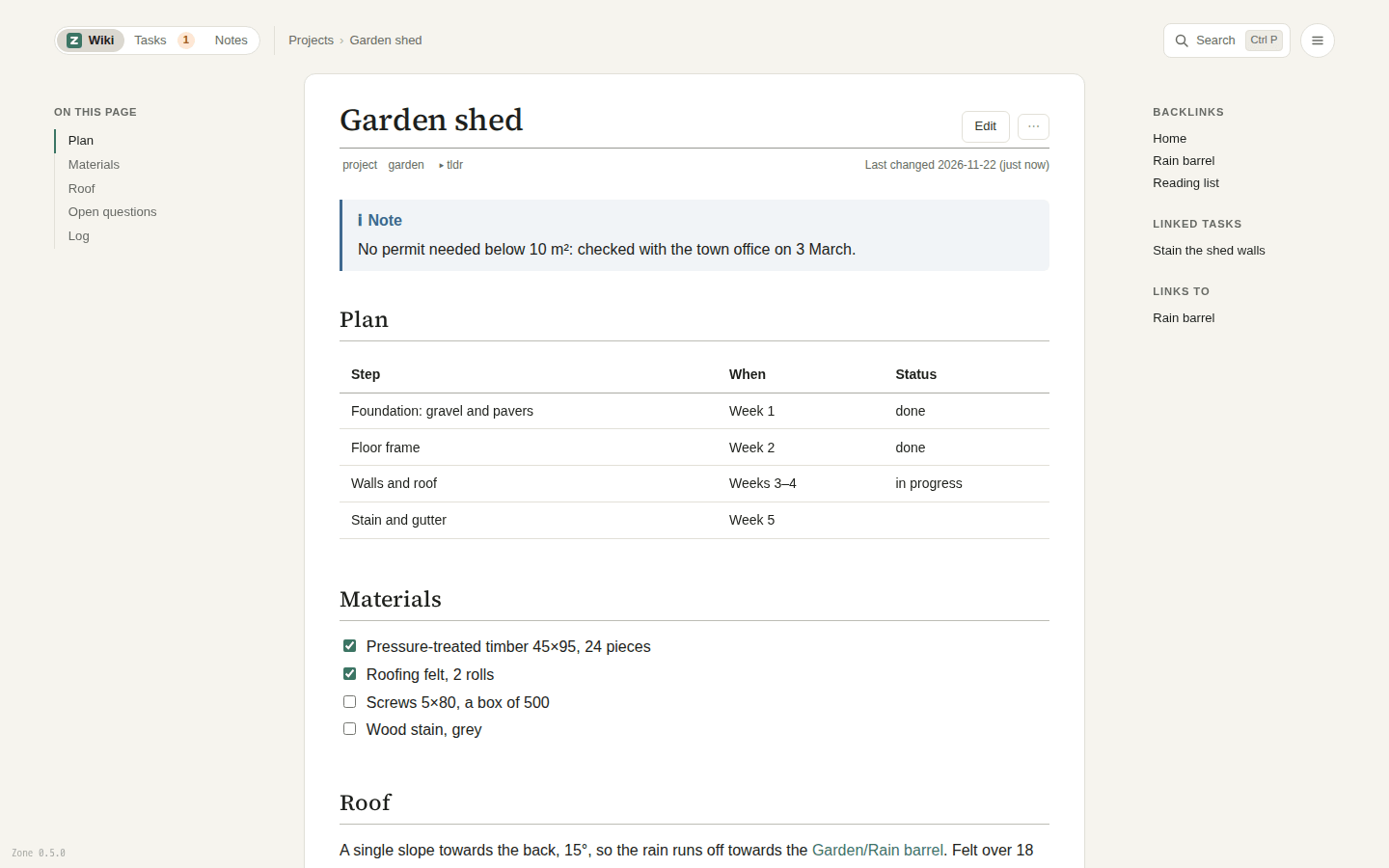
The header and the page menu
At the top of every page are its title, an Edit button (or press e) and a ⋯ button that opens the page menu:
| Entry | What it does |
|---|---|
| Present | shows the page as slides, one per heading (also p; only on pages with headings) |
| History | every saved version of the page (see History and undo) |
| Print… | the browser’s print dialog, where you can also save a PDF |
| Share… or Make shared… | moves one of your private or group pages to more readers (below) |
| Rename… | gives the page a new name or folder (below) |
| Delete… | deletes the page after asking (also Ctrl+Delete) |
Under the title, a row shows the page’s tags, a tldr switch for its summary, and Last changed with the date. A private page shows 🔒 beside its title, a group’s page 👥 and the group’s name.
Copying a link
Hover over the title or a heading and a small link icon appears after it.
Click it to copy the address of the page, or of that section with its #anchor.
“Link copied” confirms it.
Contents and connections
On a wide screen (from about 1320 pixels) the page uses the room on either side:
- On this page, on the left, lists the page’s
##and###headings once it has at least three. The section you’re reading is marked, and ↑ Back to top appears once you scroll down. - On the right are the page’s connections: Backlinks (pages that link here), Linked tasks, Related and Links to (the pages this one links to).
On narrower screens the connections are at the end of the page instead,
and a ← 3 chip at the right of the top row says how many pages link here.
Hover it (or tap it on a phone) to see them.
Backlinks and linked tasks
- Backlinks lists every page with a link to this one, wikilink or ordinary Markdown link. “No pages link here.” when there are none.
- Linked tasks lists the open tasks whose title or description links to this page.
A task that links to one section also puts a
☑ 1chip on that section’s heading, listing its tasks.
Folding sections
Every ## and ### heading with text under it has a small chevron.
Click it to fold the section away; the heading then shows a wavy line with folded in it, which you click to open it again.
- Alt+click folds or unfolds every section at once.
- Press
zto fold all sections, and again to unfold them. ]and[jump to the next and previous section.
Folding is only for viewing: the file doesn’t change, and every page opens unfolded. Find in page, a link to a section and printing all open folded sections.
Making a page
Most pages start as a link.
- On any page, write a link to the page you want, such as
[[Garden shed]], and save. - The link shows as a red link, because the page doesn’t exist yet.
- Click it. The editor opens for the new page with its title filled in.
- Write, then click Done. The page now exists, and the link turns normal.
This way every page is linked from somewhere and easy to find again.
Two other ways in:
- From a note: Move to wiki… in the note’s ⋯ menu turns it into a page (see Notes).
- Your private home and a group’s home have a New page button. It asks for the page’s name and, if you’re in a group, whom it is For: everyone, one of your groups, or only you.
Linking pages
Wikilinks
A wikilink is a link to another page by its name, in double brackets:
| Write | Links to |
|---|---|
[[Garden shed]] |
the page garden-shed |
[[projects/garden-shed]] |
a page in a folder |
[[Garden shed|the shed]] |
the same page, shown as “the shed” |
[[Garden shed#Roof]] |
the section “Roof” on that page |
[[#Roof]] |
the section “Roof” on this page |
You rarely type a name in full: in the editor, [[ opens a list of pages to pick from (see Writing).
Ordinary Markdown links like [the shed](/page/garden-shed) work too, and count as backlinks.
Red links
A link to a page that doesn’t exist yet is shown in red. Clicking it opens the editor so you can write the page right away. Red links are a to-do list for your wiki: pages someone thought should exist.
Links between private and shared pages
With several users, a link only works for people who can see its target. A link from a shared page to your private page is marked 🔒 for you; everyone else sees plain text. On a private page, a red link that would make a shared page is marked 🌐, and the editor offers to make the new page private instead. Teams explains private and group pages in full.
Renaming a page
Choose Rename… in the page’s ⋯ menu (or Rename… in the editor’s toolbar), type the new name and click Rename. You can type a title like “Garden Shed 2027”; Zone turns it into a name.
Every link to the page follows: wikilinks keep their label, Markdown links keep their style and anchor. Links in code are left as written. The page’s history follows it to its new name.
Zone refuses a name another page already has; nothing is overwritten. The home page can’t be renamed.
Moving a page into a folder
A move is a rename with a folder in the name.
Rename garden-shed to projects/garden-shed and the page is in the folder projects, which is made if needed.
Links to it follow, and the page’s own relative links are adjusted so they still lead to the same places.
Sharing a page with more people
Where a page is kept says who sees it. On one of your private pages, Make shared… in the ⋯ menu moves it into the shared wiki, where everyone who uses the wiki sees and changes it. If you’re in a group, the entry is Share… and also offers your groups’ folders, each with the people who would then see the page. Links to the page follow, and so do the files it shows.
Moving a page to fewer people is different: only an admin may do it, or whoever shared the page as long as nobody else has changed it. A rename into another place says who will see the page before it asks Yes, move it. The full rules are in Teams.
Deleting a page
Choose Delete… in the ⋯ menu (or press Ctrl+Delete, or Delete in the editor) and confirm. Links to the page turn into red links.
Deleting isn’t final: the page stays in the wiki’s history, and Deleted Pages brings it back with one click (see History and undo). The home page can’t be deleted.
The home page
Your wiki’s home page is the page index, the file index.md.
The Z logo and Wiki at the top left lead to it, and so does g then h.
It’s an ordinary page: put on it whatever helps you find your way, such as links to your main pages.
It can’t be renamed or deleted.
With several users, your private home (private/<you>/index) and each group’s home (groups/<name>/index) work the same way.
Zone makes each the first time you open it.
Frontmatter
A page may start with a block between two --- lines, called frontmatter, that holds facts about the page:
---
tags: garden, project
tldr: A 2×3 m shed at the back of the garden, built over five weeks.
sources: [[Garden budget]], https://example.com/shed-guide
---
# Garden shed
| Key | What it’s for | How it shows |
|---|---|---|
tags: |
the page’s tags, comma-separated or one - tag per line |
pills under the title; click one to search for the tag |
tldr: |
a short summary | a tldr switch under the title that shows it |
sources: |
where the page’s facts come from: URLs, [label](url) or [[page]] |
a Sources list at the end of the page |
Other keys are kept but ignored. You edit frontmatter as text in the editor; there’s no separate form. Dates aren’t needed: the page’s history knows when it changed.
Uploads and images
To add a file or image to a page, paste it or drag it into the editor, or click Attach in the formatting bar.
Zone uploads it and writes the link for you:
an image as , which shows the image, any other file as [name](url), a link to download it.
- Files are kept in an
_assets/folder next to the pages: the wiki’s own, or your private folder’s or a group’s for a page there, so they’re seen by the same people as the page. - A pasted screenshot gets a unique name. A file whose name is taken asks whether to replace it, use another name, or cancel.
- Your admin may set a size limit for uploads.
Click an image on a page to see it full size.
Set an image’s width with | and a number of pixels in its description: .
An image from another website isn’t loaded, so a page can’t leak what you read to other sites. It shows as a link marked 🖼 instead, unless the person running your Zone allowed that site.