Getting started
Your first ten minutes in Zone: what’s where, your first page, a note and a task, planning your day, and how to find things again. Everything else in this manual builds on these few steps.
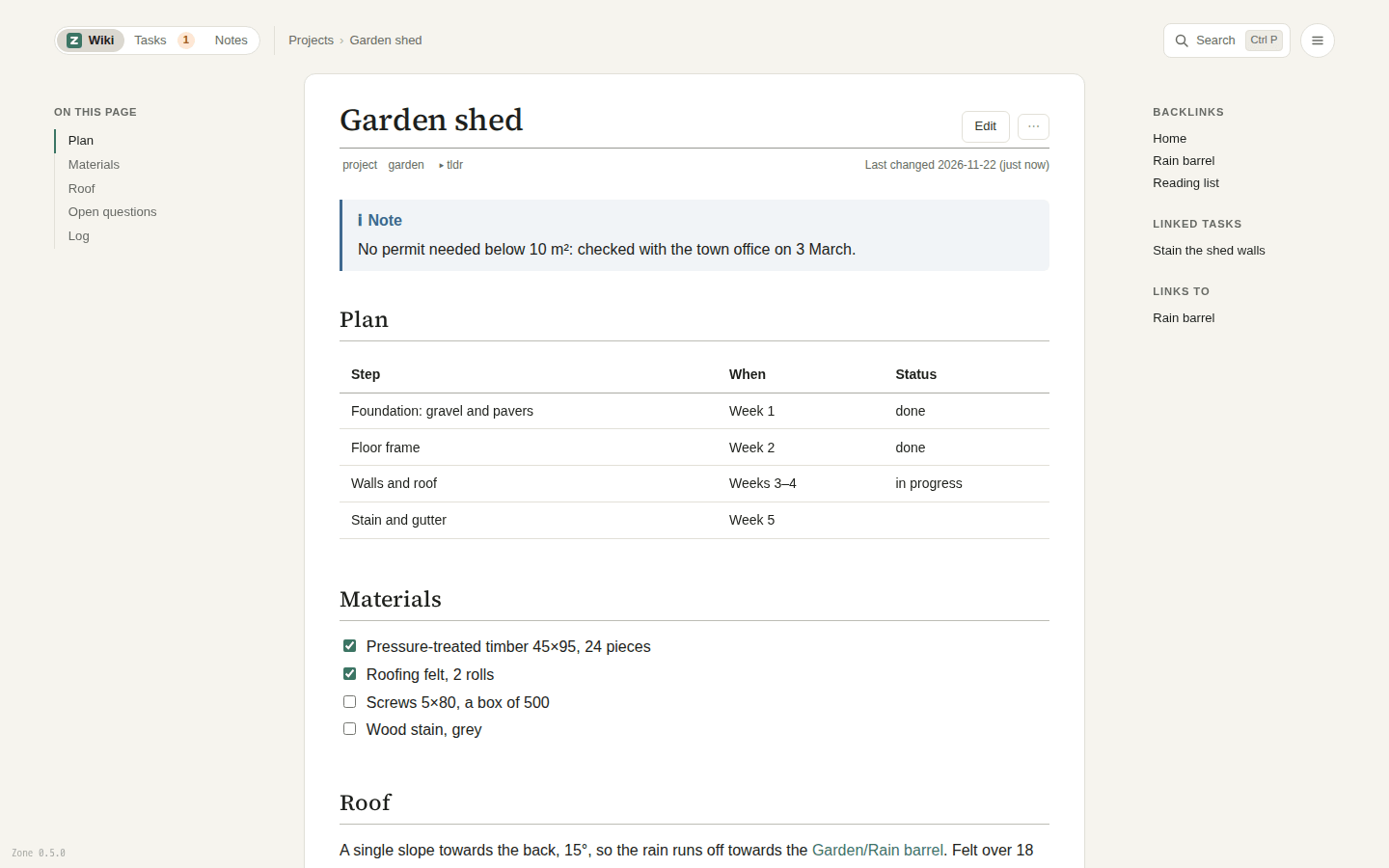
The modules
Zone has three parts, called modules. You switch between them with the pills at the top left of every page (on a phone, with the tab bar at the bottom):
| Module | What it is |
|---|---|
| Wiki | Your pages: Markdown, linked to each other. The Z logo next to it takes you to the home page. |
| Tasks | A task manager of its own: what’s on today, a board to plan the days ahead, lists, repeating tasks. |
| Notes | Quick notes, written down now and filed into the wiki later. |
In a wiki with several users there are two more:
| Module | What it is |
|---|---|
| Private | Your own pages, which only you see. |
| Groups | The pages of a group you’re in, which only its members see. You see it only when you’re in a group. |
With users, your notes are private too: only you see them until you move one into the wiki. Teams explains who sees what.
Edit your first page
The home page is a page like any other.
Click Edit at its top right (or press e).
The editor opens with the page’s Markdown, and a live preview beside it on a wide screen.
Type something, for example:
# Home

Things I'm working on:

- [[Garden shed]]
- [[Q3 plan]]
Zone saves as you type.
Click Done (or press Ctrl+S) to finish: the page is shown again and the change is saved as a version you can go back to.
Writing has the editor and Zone’s Markdown in full.
Link to a page not written yet
[[Garden shed]] is a wikilink: a link to another page by its name.
The page doesn’t exist yet, so the link is shown in red with a dashed underline.
Click it, and the editor opens for the new page, ready to write.
Click Done, and the page exists, and the link on the home page works.
Starting a page from a link to it is the usual way in Zone: the page is linked from somewhere from the start. Pages covers folders, renaming and moving.
Write a note
Press c, then n (on a phone, tap Note in the tab bar).
Give the note a title and click Create & Edit.
The editor opens under the title: write whatever you need to remember, then click Done.
The note is now in Notes, newest first. Later you can give it a proper place in the wiki, or add it to a page that already exists. Notes shows how.
Add a task
Press c, then t (on a phone, tap Task).
A task dialog opens, wherever you are.
Type a title, and add dates and tags at its end in plain words, called quick-add:
Call Ben tomorrow #work due:fri
That makes the task “Call Ben”, starting tomorrow, due on Friday, tagged #work.
The fields below the title show what Zone understood as you type.
Click Save: the task goes to your Inbox, and you stay on the page you were on.
Without a date of your own, the task starts today, so it shows up in Today in Tasks. The number on the Tasks pill counts what’s due.
Plan your day
Click Tasks (or press g, then t).
Today shows what you planned for today, and what is due or overdue.
On Open, switch from List to Plan: a board with a section for each day.
Drag a task from Unplanned onto a day, and it’s on Today when that day comes.
Tick a task’s box when it’s done.
Tasks can be all the task app you need: Tasks has the rest, such as lists, repeating tasks, assigning tasks in a team, and showing tasks on a wiki page.
Find things
Press Ctrl+P (⌘P on a Mac), or click Search at the top right.
With nothing typed, the dialog lists your recently edited pages, so it works as a quick switcher.
Type a few letters to narrow the list by title; matches in pages’ text and in tasks appear below.
Use the arrow keys and Enter to open one.
Search explains phrases, tags and dates.
Learn the shortcuts
Press ? anywhere to see every keyboard shortcut.
Esc closes the dialog.
The most useful ones to start with:
| Keys | Does |
|---|---|
Ctrl+P |
Search |
e |
Edit the page |
c n |
New note |
c t |
New task |
g h |
Go to the home page |
g t |
Go to Tasks |
Where to go next
- Pages: links, folders, renaming, moving and deleting
- Writing: the editor and Zone’s Markdown
- Tasks: Today and the Plan board, lists, dates, repeating tasks and assigning
- Notes: filing notes into the wiki
- Search: finding pages and tasks
- Getting around: the modules, shortcuts, phones, sharing and presenting
- History and undo: every version, and getting old ones back
- Teams: users, private pages and groups
- AI assistants: connecting Claude, ChatGPT and others