Getting around
How to move around Zone: the modules, the buttons at the top of each page, the tab bar on a phone, and the keyboard shortcuts. It also covers showing your screen to others (Sharing mode), presenting a page as slides, printing, dark mode and installing Zone on a phone’s home screen.
The module switcher
At the top left of every page are the modules, as pills: Wiki, Tasks and Notes. Click one to go there; the one you’re in is shaded. The green Z in front of Wiki takes you to the home page.
In a wiki with users, the switcher has two pills: the pages, Wiki · Private, and your tools, Tasks · Notes. Private and Notes carry a small lock: only you see what’s in them. If you’re in a group, Groups stands between Wiki and Private:
- in one group, the pill carries the group’s name and goes to its home page;
- in several, it says Groups and opens a menu of your groups’ homes, with All your groups at the end.
Teams explains private pages and groups.
The trail of recent pages
Next to the switcher, Zone shows the pages you visited last, as a trail, so you can step back to one with a click. When the window is narrow, the oldest pages drop out of the trail first.
When other pages link to the one you’re on, a ← 3 chip at the end of the row says how many.
Point at it (tap it on a phone) to see which pages they are.
On a wide screen they’re listed in the right-hand column instead, under Backlinks.
Top actions
At the top right of each page, on a computer:
| Button | Does |
|---|---|
| Sharing | Only while Sharing mode is on: turns it off |
| Search | Opens the search, as Ctrl+P does (see Search) |
| Your initial | With users: the user menu, with Groups, Connect an assistant, Change password, Sharing mode, Admin (for admins), Help and Sign out |
| Three lines | Without users: the menu, with Connect an assistant, Change password (or Set a login, while the wiki has none), Sharing mode, Help and Sign out |
There are no “new” buttons here: a new note is c n and a new task c t.
A new page comes from a link to it (see Pages); the home page of a group and your private home also have a New page button.
Next to these buttons, a count of uncommitted changes may appear: pages changed outside Zone, or not saved as a version yet. History and undo explains what to do with them.
The tab bar on a phone
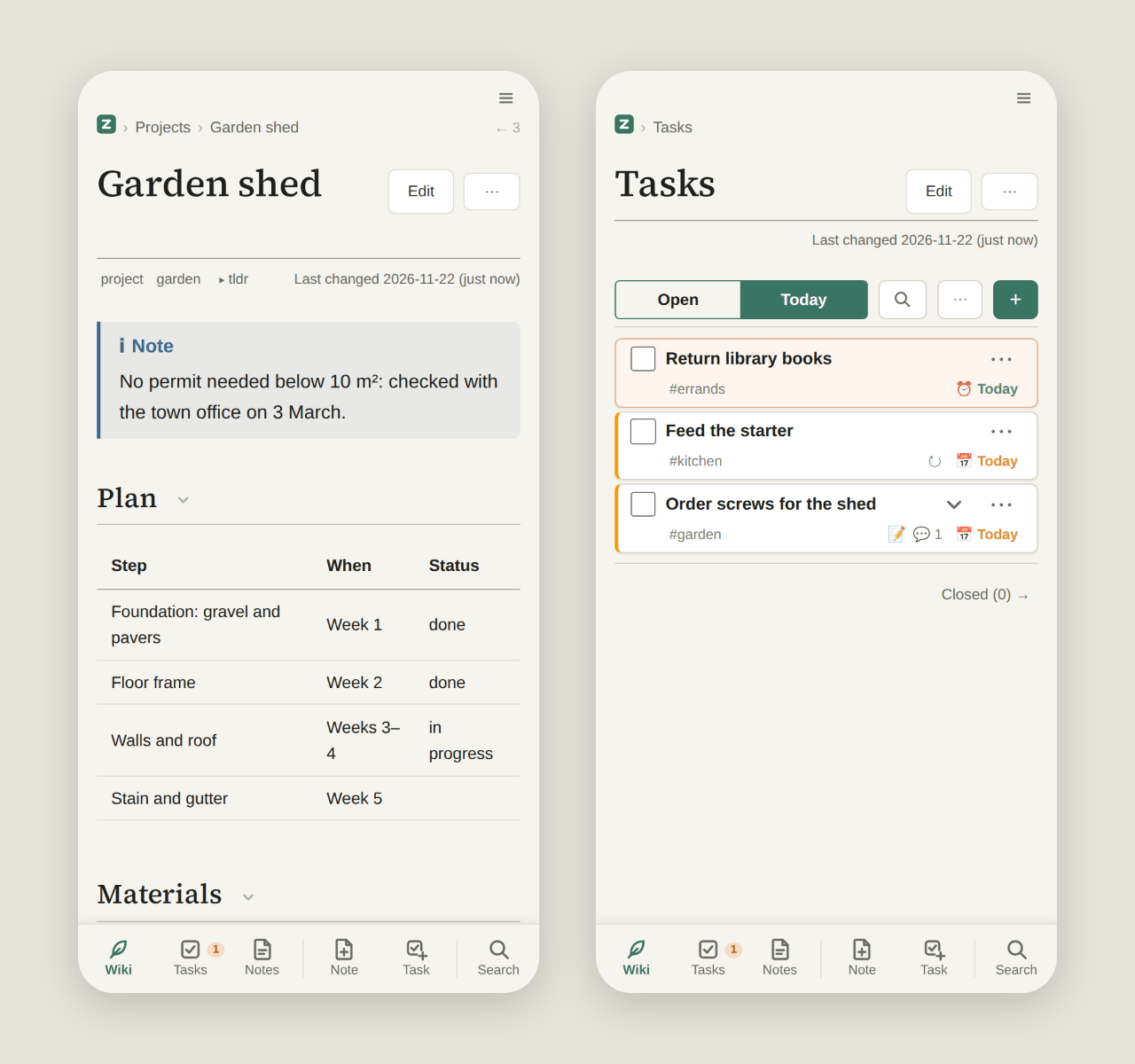
On a phone, the modules and actions are in a tab bar at the bottom of the screen:
| Tabs | Do |
|---|---|
| Wiki, Tasks, Notes (with users also Private, and Groups if you’re in one) | Go to that module |
| Note | Write a new note |
| Task | Add a new task; in Tasks, a new task in the list you’re looking at |
| Search | Open the search |
The bar hides while you type, since the keyboard needs the room.
The Tasks counts
The Tasks pill (and the Tasks tab on a phone) shows how your tasks stand, so you see it from any page:
- A number is how many tasks are due today or overdue.
- A dot, in a wiki with users, means there is news on your tasks: one given to you, a comment, a mention; Updates in Tasks lists them (News about your tasks).
Point at the pill to read the details, such as “Tasks: 2 updates for you · 5 for today · 1 overdue · 1 due today”. Nothing shows when there’s nothing to say.
The Tasks pill goes to My tasks: your own tasks, and the shared ones assigned to you. Once you open another list on the Tasks page, the pill brings you back to that list instead, until you close the browser. The counts are of My tasks all the same, and they update every minute while you use the page. See Tasks.
Keyboard shortcuts
Press ? (or Ctrl+/) anywhere to see every shortcut in Zone; Esc closes the list.
Single-letter shortcuts don’t work while you’re typing in a field.
Where it says g then h, press the two keys one after the other.
Anywhere
| Keys | Does |
|---|---|
Ctrl+P |
Search pages |
? or Ctrl+/ |
Show the shortcuts |
S (Shift+s) |
Sharing mode on and off |
g then h |
Go to the home page |
g then n |
Go to Notes |
g then t |
Go to Tasks (My tasks, or the list you were on last) |
g then a |
Go to All tasks |
g then p |
Go to your private home (with users) |
g then g |
Go to your group’s home (with users, in a group) |
c then n |
New note |
c then t |
New task in your Inbox |
On a page
| Keys | Does |
|---|---|
e |
Edit |
] / [ |
Next / previous section |
z |
Fold or unfold all sections |
p |
Present |
Ctrl+Delete |
Delete the page |
n / N |
Next / previous search match |
Esc |
Clear the search matches |
In the editor
| Keys | Does |
|---|---|
Ctrl+S |
Done |
F2 |
Preview on and off |
Ctrl+B / Ctrl+I |
Bold / italic |
Ctrl+K |
Link |
Ctrl+Shift+X |
Tick or untick a checkbox |
Enter |
Follow the [[link]] at the cursor; turn a selection into a [[link]]; in a list, start the next item |
Tab |
Indent, or expand a snippet |
/date, /time, /datetime, then Tab |
Insert today’s date, the time, or both |
In a presentation
| Keys | Does |
|---|---|
→ ↓ PgDn |
Next slide |
← ↑ PgUp |
Previous slide |
e |
Edit this slide |
Esc |
Exit |
In the search
| Keys | Does |
|---|---|
↑ ↓ |
Move through the results |
Enter |
Open a result |
The search syntax ("a phrase", -word, #tag, edited:, after:, before:) is in Search.
In Tasks
| Keys | Does |
|---|---|
j k or ↓ ↑ |
Next / previous task |
Shift+j Shift+k or Shift+↓ Shift+↑ |
Select more along the way |
Shift+click / Ctrl+click |
Select a range / one more |
Ctrl+A |
Select every task shown |
l h or → ← |
Open / close the details |
Esc |
Close the details, then deselect |
n |
New task in this list |
Enter |
Edit |
Space |
Complete or reopen |
Delete |
Close as won’t do |
Ctrl+Shift+↑ ↓ or Ctrl+Shift+J K |
Move up / down |
Shift+F10 or Menu |
The task’s ⋯ menu |
Ctrl+Z |
Undo, while Zone offers it |
Tab / Shift+Tab |
Next / previous tab |
o |
Order: manual, by due date, newest |
d |
Show as a list, a plan, by person or by list |
/ |
Filter |
# |
Filter by a tag |
@ |
Filter by a person (with users) |
f / F |
Start today / tomorrow |
1 to 7 |
Start on that day (1 is today) |
0 |
Unplan |
i |
Importance: high, low, normal |
t / T |
Add / remove tags |
m |
Move to a list |
a |
Assign (with users) |
The keys from n on act on the selected tasks.
In a task’s dialog
| Keys | Does |
|---|---|
Ctrl+Enter or Ctrl+S |
Save the task or comment |
Tab |
Next field |
Enter |
In Tags (and Assignee): make a chip |
Alt+C |
Write a comment |
F2 |
Preview the description |
Esc |
Cancel |
On a Mac, use ⌘ where it says Ctrl.
Sharing mode
Sharing mode is for showing your screen to others, in a call or on a projector. The page you’re on stays as it is, but what would show other pages around it is hidden:
- the trail of recent pages;
- Backlinks, Linked tasks, Related and Links to;
- the Tasks counts and the uncommitted count;
- the search dialog’s list of recent pages (it lists nothing until you type).
Turn it on with S (Shift+s), or with Sharing mode in the menu at the top right (your initial; without users, the three lines).
While it’s on, a thin amber bar runs across the top of the screen and an amber Sharing button sits at the top right: click it, or press S again, to turn it off.
It stays on, also after a reload, until you turn it off.
Phones have no switch for it.
Pages not for sharing
Some pages are hidden entirely in Sharing mode: by default, pages tagged #noshare.
They’re left out of search, Notes and every list, a link to one shows as plain text, and opening one shows only “Hidden page”.
Whoever runs your wiki can choose other tags or whole folders (see Running Zone yourself).
Presenting a page
Any page with headings can be shown as slides.
Choose Present in the page’s ⋯ menu, or press p.
The page fills the screen, in larger type, and each ## and ### heading starts a new slide.
The first slide has the page’s title and whatever comes before the first heading.
A counter and a progress bar show where you are.
Move with the arrow keys, PgDn and PgUp, or the mouse wheel.
Press e (or click ✎ in the corner) to edit the current slide’s section; after you save, the presentation comes back at that slide.
Esc ends the presentation.
Printing a page
Choose Print… in the page’s ⋯ menu. Your browser’s print dialog opens, where you can print or choose “Save as PDF”.
Only the page itself is printed: its title, tags and text, without Zone’s buttons, columns and links around it. Folded sections print unfolded, and a page always prints light, even when your screen is dark.
Light and dark
Zone follows your device: when your system is set to dark mode, so is Zone. There’s no switch in Zone itself; change it in your system’s or browser’s settings.
Zone on your home screen
On a phone you can add Zone to the home screen, so it opens like an app, with its own icon. In your phone’s browser, open its menu and choose Add to Home screen (on an iPhone, the share button, then Add to Home Screen).
On Android, Zone opens as an app of its own only when your wiki is reached over HTTPS;
over plain http:// the icon just opens a browser tab.